EasyAdmin Integration
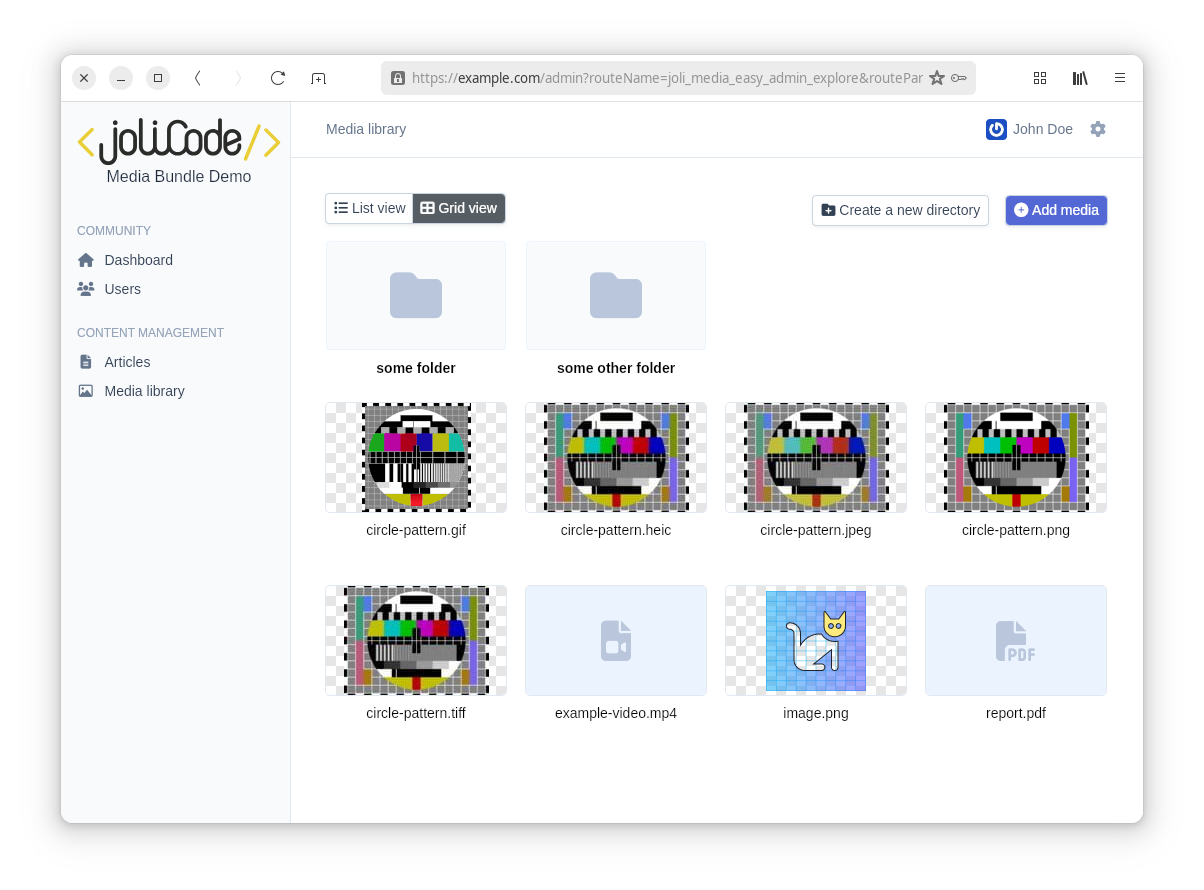
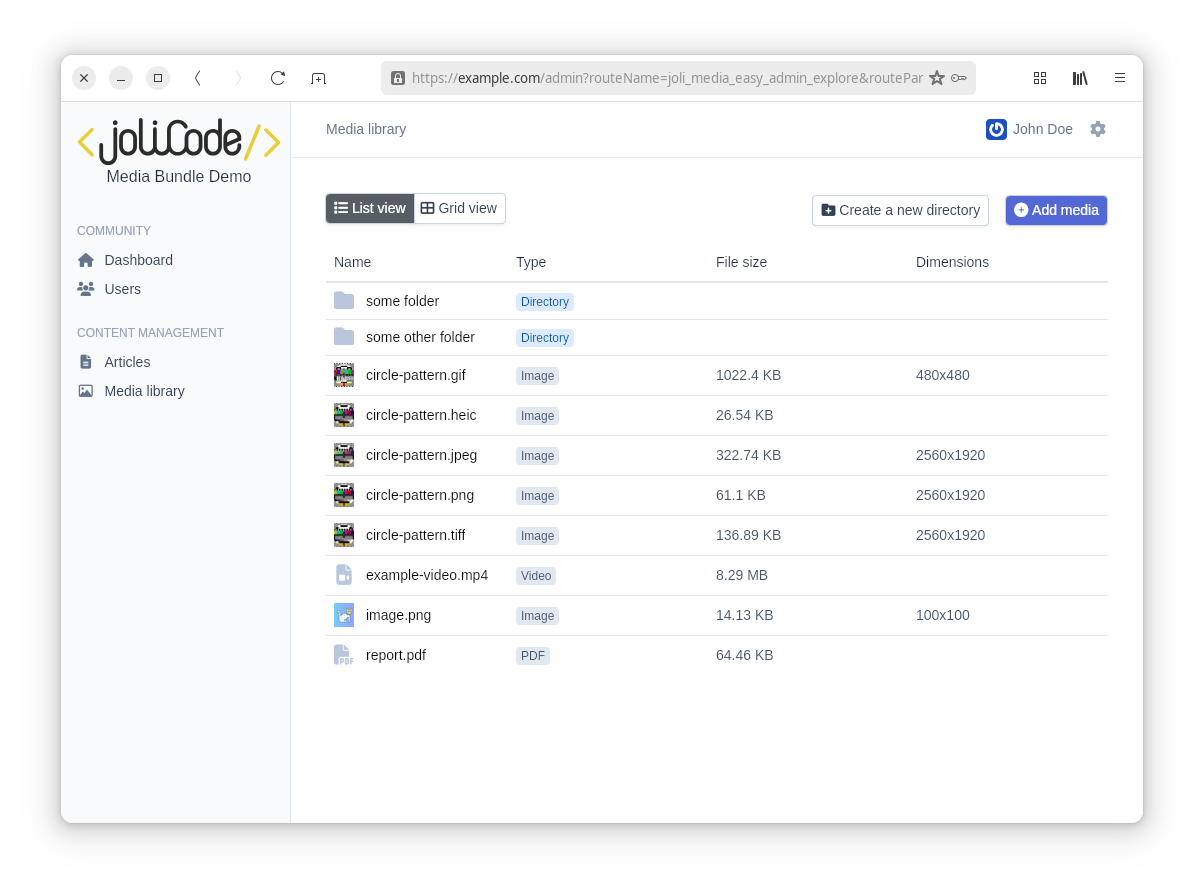
The JoliMediaBundle provides seamless integration with EasyAdmin, enabling you to manage media directly within your EasyAdmin interface. This integration includes features such as a media library, media browser, and media preview capabilities.
Enabling the EasyAdmin Integration
To enable the integration, you need to register the JoliMediaEasyAdminBundle in your Symfony application. Add the following line to your bundles.php file:
// filepath: config/bundles.php
return [
    // ...
    JoliCode\MediaBundle\Bridge\EasyAdmin\JoliMediaEasyAdminBundle::class => ['all' => true],
];
That is all: the media library routes are generated by EasyAdmin itself, under the path of your dashboard. With a dashboard mounted on /admin, the media library is browsable at /admin/media/explore, and a media is displayed at /admin/media/show/photos/sunset.jpg. As a convenience, /admin/media redirects to the media explorer.
The media part of these paths is configurable with the path_prefix option:
# filepath: config/packages/joli_media_easy_admin.yaml
joli_media_easy_admin:
    path_prefix: media-library # the library is now browsable at /admin/media-library/explore
Note
EasyAdmin only generates these routes for applications using pretty URLs, which are the default since EasyAdmin 5.0 and opt-in in EasyAdmin 4.x. If your application still uses the legacy admin URLs, you need to register the media library routes yourself, and the media library is then reached through the dashboard route:
# filepath: config/routes/joli_media.yaml
_joli_media_easy_admin:
    resource: "@JoliMediaEasyAdminBundle/src/Controller/"
    prefix: /admin/media
Configuring the EasyAdmin Integration
The integration can be configured in the config/packages/joli_media_easy_admin.yaml file. Below is an example configuration:
joli_media_easy_admin:
    path_prefix: media
    pagination:
        per_page: 20
    text_editor:
        variation: blog_content
    upload:
        max_files: 10
        max_file_size: 20
        accepted_files:
            - image/*
            - video/*
            - application/pdf
    visibility:
        show_variations_stored: true
        show_variations_action_regenerate: true
        show_html_code: true
        show_markdown_code: true
Configuration Options
The path_prefix option controls where the media library is mounted, relatively to the path of your EasyAdmin dashboard (default: media).
The pagination section controls how media items are loaded and displayed:
per_page: Number of media items to display per page (default:20). This improves performance for large libraries by loading only a subset of items.
The text_editor section configures the media picker of the TextEditorField fields:
variation: Name of the variation to insert when a media is picked from the toolbar of a text editor (default:null, meaning that the original media is inserted). See Choosing the variation inserted in the editor.
The upload section of the configuration allows you to control the media upload behavior in EasyAdmin:
max_files: Sets the maximum number of files that can be uploaded at once.max_file_size: Sets the maximum file size for uploads (in megabytes).accepted_files: Specifies the MIME types of files that can be uploaded. You can use wildcards likeimage/*or specific types likeapplication/pdf.
The visibility section of the configuration allows you to control the visibility of various features in the EasyAdmin media interface:
show_variations_list: Shows the list of variations in a dedicated tab on the media show page.show_variations_list_admin_variations: Shows the variations defined in by the admin bridge in the variations list tab.show_variations_stored: Enables the display of whether media variations are stored.show_variations_action_regenerate: Enables the "Regenerate Variations" action for media.show_html_code: Displays the HTML code for embedding media.show_markdown_code: Displays the Markdown code for embedding media.
Pagination and Performance
For large media libraries (hundreds or thousands of files), pagination significantly improves performance by loading only a subset of items at a time. The media library uses traditional page navigation with Previous/Next buttons, which is ideal for precise navigation in very large libraries.
You can configure the number of items displayed per page:
joli_media_easy_admin:
    pagination:
        per_page: 20
Media library menu item
To add a link to the media library in your EasyAdmin menu, use the MenuItem::linkToRoute method. The route name of the media library depends on the dashboard it belongs to, so it must not be hardcoded: inject the MediaAdminRouter service in your dashboard controller and ask it for the route name of the explore action:
use EasyCorp\Bundle\EasyAdminBundle\Config\MenuItem;
use EasyCorp\Bundle\EasyAdminBundle\Controller\AbstractDashboardController;
use JoliCode\MediaBundle\Bridge\EasyAdmin\Router\MediaAdminRouter;

class DashboardController extends AbstractDashboardController
{
    public function __construct(
        private readonly MediaAdminRouter $mediaAdminRouter,
    ) {
    }

    public function configureMenuItems(): iterable
    {
        // ...

        yield MenuItem::linkToRoute('Media Library', 'fa fa-image', $this->mediaAdminRouter->getRouteName('explore'));
    }
}
If you need to link to the media library from a template, resolve the route name at runtime with the joli_media_admin_route() Twig function, or generate the URL directly with joli_media_admin_url():
<a href="{{ joli_media_admin_url('explore') }}">Media library</a>
<a href="{{ joli_media_admin_url('explore', { key: 'photos' }) }}">Photos</a>
<a href="{{ joli_media_admin_url('show', { key: 'photos/sunset.jpg' }) }}">Sunset</a>
Both delegate to the JoliCode\MediaBundle\Bridge\EasyAdmin\Router\MediaAdminRouter service and its getRouteName() and generateUrl() methods. The supported action names are explore, choose, chooseDirectory, show, createDirectory, renameDirectory, deleteDirectory, move, delete, upload and regenerateVariation.
From the media library, you will be able to upload new files and switch between a grid or a list view to browse them. You can also organize your media by creating sub-folders, and perform CRUD operations.
Media selector widget
A media selector widget is available for EasyAdmin. You can use it in your admin classes to allow users to select media items easily from the media library:
use JoliCode\MediaBundle\Bridge\EasyAdmin\Field\MediaChoiceField;

class ArticleCrudController extends AbstractCrudController
{
    public function configureFields(string $pageName): iterable
    {
        return [
            MediaChoiceField::new('image')
        ];
    }
}
The MediaChoiceField field will render a media selector widget in the form, allowing users to select media items from the media library. A preview of the selected media will be displayed, along with options to upload new media or select existing ones.
This setFolder() method can be used to specify which folder should be opened by default in the media browser. Note that, if a media was already selected, the media selector will open the folder of the selected media:
use JoliCode\MediaBundle\Bridge\EasyAdmin\Field\MediaChoiceField;

class ArticleCrudController extends AbstractCrudController
{
    public function configureFields(string $pageName): iterable
    {
        return [
            MediaChoiceField::new('image')->setFolder('example-folder')
        ];
    }
}
The MediaChoiceField can be nested into a CollectionField, allowing you to manage multiple media items in a single form. This is particularly useful for managing collections of images or other media types:
use JoliCode\MediaBundle\Bridge\EasyAdmin\Field\MediaChoiceField;

class ArticleCrudController extends AbstractCrudController
{
    public function configureFields(string $pageName): iterable
    {
        return [
            CollectionField::new('images')
                ->setHelp('Add some media to illustrate this article')
                ->renderExpanded(true)
                ->useEntryCrudForm(ArticleImagesCrudController::class)
                ->setEntryIsComplex()
        ];
    }
}
Using the widget outside of a MediaChoiceField
The widget can also be used as a plain form type, for instance when it is nested into one of your own form types, or into a form type provided by a third-party bundle such as A2lix TranslationsType:
use JoliCode\MediaBundle\Bridge\EasyAdmin\Form\Type\MediaChoiceType;

class ArticleTranslationType extends AbstractType
{
    public function buildForm(FormBuilderInterface $builder, array $options): void
    {
        $builder->add('image', MediaChoiceType::class);
    }
}
There is nothing else to configure: the form type registers the form theme and the assets it needs by itself.
Trix and TextEditorField integration
When a TextEditorField is used in an EasyAdmin form, a media selector button can be added to the toolbar. This allows users to easily insert media into the text editor content. In order to enable this feature, you need to use the form theme provided by the JoliMediaEasyAdminBundle. You can do this by adding the following line to your configureCrud method in your EasyAdmin controller:
public function configureCrud(Crud $crud): Crud
{
    return parent::configureCrud($crud)
        ->addFormTheme('@JoliMediaEasyAdmin/form/form_theme.html.twig')
    ;
}
Unless the page also displays a media selector widget, which brings them along, you also need to make sure that the assets for the JoliMediaEasyAdminBundle are configured correctly. This can be done in the configureAssets method of your EasyAdmin controller:
use EasyCorp\Bundle\EasyAdminBundle\Config\Asset;
use JoliCode\MediaBundle\Bridge\EasyAdmin\Asset\Package;

public function configureAssets(Assets $assets): Assets
{
    return $assets
        ->addCssFile(Asset::new(Package::CSS_FILE)->package(Package::NAME))
        ->addJsFile(Asset::new(Package::JS_FILE)->package(Package::NAME))
    ;
}
Choosing the variation inserted in the editor
By default, picking a media from the toolbar inserts the original media in the editor content. This is rarely what you want for images: originals are usually way too large for the body of an article.
The variation to insert can be defined field by field, by building the field with MediaTextEditorField. It returns a plain EasyAdmin TextEditorField, which you can configure as usual:
use JoliCode\MediaBundle\Bridge\EasyAdmin\Field\MediaTextEditorField;

class ArticleCrudController extends AbstractCrudController
{
    public function configureFields(string $pageName): iterable
    {
        return [
            MediaTextEditorField::new('body', variation: 'blog_content')
                ->setNumOfRows(20),
        ];
    }
}
The same can be done on an already built field, with the MediaTextEditorField::OPTION_VARIATION custom option:
use EasyCorp\Bundle\EasyAdminBundle\Field\TextEditorField;
use JoliCode\MediaBundle\Bridge\EasyAdmin\Field\MediaTextEditorField;

TextEditorField::new('body')
    ->setCustomOption(MediaTextEditorField::OPTION_VARIATION, 'blog_content')
;
When most of your text editors share the same variation, define it once for the whole project with the text_editor.variation option:
# filepath: config/packages/joli_media_easy_admin.yaml
joli_media_easy_admin:
    text_editor:
        variation: blog_content
The variation configured on a field always takes precedence over this default one. The variation must be defined in the default library, otherwise the media picker returns a "400 Bad Request" error. Media for which the variation does not apply - because of the variation voters, or because they are not images - are inserted as their original file.
Restricting access to the Media library controller
The Media library controller in the bundle uses Symfony's security voters to control access to its actions. By default, all users are allowed to perform all actions on the media library (provided they can access the EasyAdmin interface, of course). However, you might want to restrict access to certain actions based on your application's requirements, the user identity or roles, etc. For this purpose, you can create your own security voter - just make sure to add the joli_media_admin.security.voter alias to your voter service so that it overrides the default voter provided by the bundle.
You can implement your own Voter from scratch or extend the JoliCode\MediaBundle\Bridge\Security\Voter\MediaVoter class and override its methods to implement your custom access logic:
namespace App\Security\Voter;

use JoliCode\MediaBundle\Bridge\Security\Voter\MediaVoter as BaseMediaVoter;
use Symfony\Component\DependencyInjection\Attribute\AsAlias;
use Symfony\Component\Security\Core\User\UserInterface;

#[AsAlias(id: 'joli_media_admin.security.voter')]
class MediaVoter extends BaseMediaVoter
{
    protected function canDelete(?UserInterface $user, string $libraryName, string $path): bool
    {
        if ('john.doe@example.com' === $user?->getUserIdentifier()) {
            // John Doe can delete any media
            return true;
        }

        if ('public-storage' === $libraryName) {
            // only users with the ROLE_ADMIN role can delete media in the public-storage library
            return \in_array('ROLE_ADMIN', $user?->getRoles() ?? [], true);
        }

        // other users cannot delete media in the private folder
        return !str_starts_with($path, 'private/');
    }
}
The JoliCode\MediaBundle\Bridge\Security\Voter\MediaVoter class provides several methods that you can override to customize access control for different actions, such as canList, canUpload, canDelete, etc. You can implement your own logic based on the user, library name, path, or any other criteria relevant to your application:
canList: Determine if the user can list media in a specific library and pathcanShow: Determine if the user can view a specific media itemcanCreateDirectory: Determine if the user can create a directory in a specific parent foldercanUpload: Determine if the user can upload media to a specific pathcanDelete: Determine if the user can delete a specific media itemcanDeleteDirectory: Determine if the user can delete a specific directorycanMove: Determine if the user can move a media item from one path to anothercanRenameDirectory: Determine if the user can rename a specific directorycanRegenerateVariation: Determine if the user can regenerate a specific variation of a media item