Sylius Integration
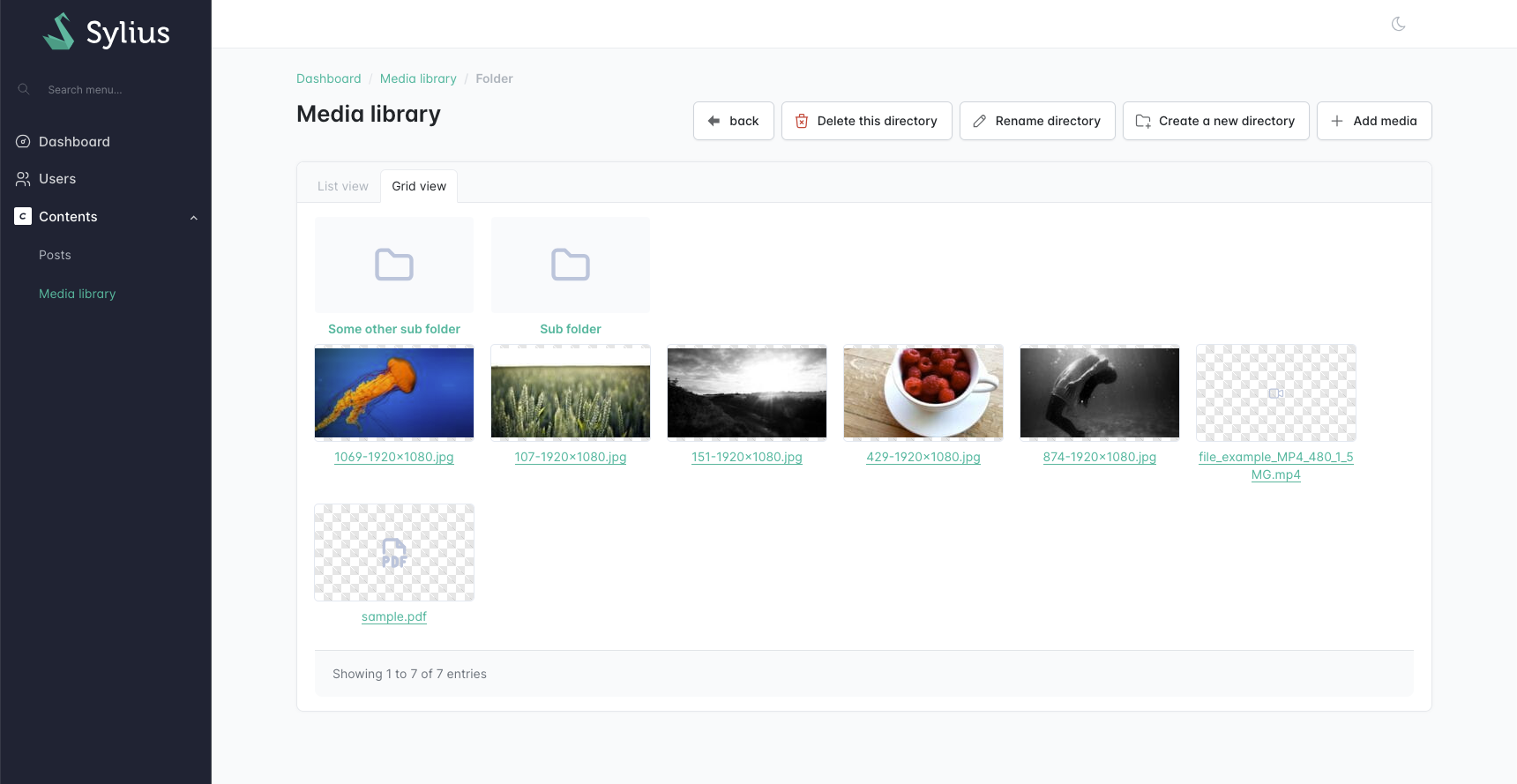
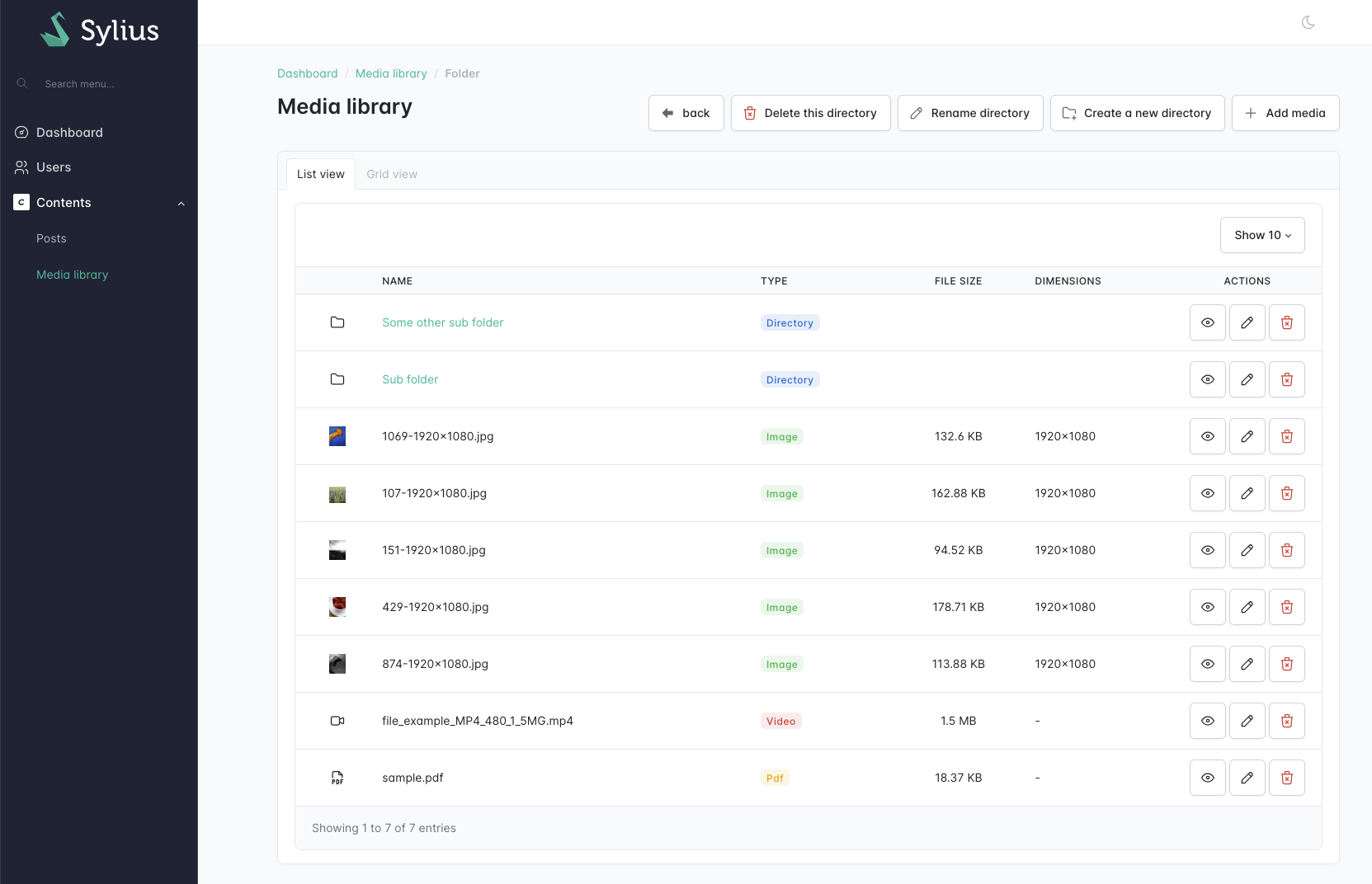
The JoliMediaBundle provides seamless integration with Sylius and Sylius Stack, enabling you to manage media directly within your Sylius interface. This integration includes features such as a media library, media browser, and media preview capabilities.
Enabling the Sylius Integration
To enable the integration, you need to register the JoliMediaSyliusBundle in your Symfony application. Add the following line to your bundles.php file:
// filepath: config/bundles.php
return [
    // ...
    JoliCode\MediaBundle\Bridge\Sylius\JoliMediaSyliusBundle::class => ['all' => true],
];
Additionally, define the routes for the media library in your routing configuration:
# filepath: config/routes/joli_media.yaml
_joli_media_sylius:
    resource: "@JoliMediaSyliusBundle/src/Admin/Controller/"
    prefix: /admin/media
Then, import the bundle configuration in the config/packages/joli_media_sylius.yaml file.
# filepath: config/packages/joli_media_sylius.yaml
imports:
    - { resource: "@JoliMediaSyliusBundle/config/app.php" }
Configuring the Sylius Integration
The integration can be configured in the config/packages/joli_media_sylius.yaml file. Below is an example configuration:
# filepath: config/packages/joli_media_sylius.yaml
imports:
    - { resource: "@JoliMediaSyliusBundle/config/app.php" }

joli_media_sylius:
    pagination:
        per_page: [10, 25, 50]
    upload:
        max_files: 10
        max_file_size: 20
        accepted_files:
            - image/*
            - video/*
            - application/pdf
    visibility:
        show_variations_list: true
        show_variations_list_admin_variations: true
        show_variations_stored: true
        show_variations_action_regenerate: true
        show_html_code: true
        show_markdown_code: true
Configuration Options
The pagination section controls how media items are loaded and displayed:
per_page: Number of media items to display per page (default:[10, 25, 50]). This improves performance for large libraries by loading only a subset of items.
The upload section of the configuration allows you to control the media upload behavior in Sylius:
max_files: Sets the maximum number of files that can be uploaded at once.max_file_size: Sets the maximum file size for uploads (in megabytes).accepted_files: Specifies the MIME types of files that can be uploaded. You can use wildcards likeimage/*or specific types likeapplication/pdf.
The visibility section of the configuration allows you to control the visibility of various features in the Sylius media interface:
show_variations_list: Shows the list of variations in a dedicated tab on the media show page.show_variations_list_admin_variations: Shows the variations defined in by the admin bridge in the variations list tab.show_variations_stored: Enables the display of whether media variations are stored.show_variations_action_regenerate: Enables the "Regenerate Variations" action for media.show_html_code: Displays the HTML code for embedding media.show_markdown_code: Displays the Markdown code for embedding media.
Pagination and Performance
For large media libraries (hundreds or thousands of files), pagination significantly improves performance by loading only a subset of items at a time. The media library uses traditional page navigation with Previous/Next buttons, which is ideal for precise navigation in very large libraries.
You can configure the number of items displayed per page:
joli_media_sylius:
    pagination:
        per_page: [10, 25, 50]
Media library menu item
To add a link to the media library in your Sylius Admin menu, you need to add the joli_media_sylius_admin_explore route
On Sylius:
namespace App\Menu\Admin;

use Knp\Menu\ItemInterface;
use Sylius\Bundle\UiBundle\Menu\Event\MenuBuilderEvent;
use Symfony\Component\EventDispatcher\Attribute\AsEventListener;

#[AsEventListener(event: 'sylius.menu.admin.main')]
final class AdminMenuListener
{
    public function __invoke(MenuBuilderEvent $event): void
    {
        $menu = $event->getMenu();

        $this->addContentsSubMenu($menu);
    }

    private function addContentsSubMenu(ItemInterface $menu): void
    {
        $library = $menu
            ->addChild('contents')
            ->setLabel('Contents')
            ->setLabelAttribute('icon', 'simple-icons:craftcms')
            ->setExtra('always_open', true)
        ;

        $library->addChild('media_library', ['route' => 'joli_media_sylius_admin_explore'])
            ->setLabel('media_library')
            ->setExtra('translation_domain', 'JoliMediaSyliusBundle')
        ;
    }
}
On Sylius stack:
namespace App\Menu\Admin;

use Knp\Menu\ItemInterface;
use Sylius\AdminUi\Knp\Menu\MenuBuilderInterface;
use Symfony\Component\DependencyInjection\Attribute\AsDecorator;

#[AsDecorator(decorates: 'sylius_admin_ui.knp.menu_builder')]
final readonly class MenuBuilder implements MenuBuilderInterface
{
    public function __construct(
        private MenuBuilderInterface $decorated,
    ) {
    }

    public function createMenu(array $options): ItemInterface
    {
        $menu = $this->decorated->createMenu($options);

        $this->addContentsSubMenu($menu);

        return $menu;
    }

    private function addContentsSubMenu(ItemInterface $menu): void
    {
        $library = $menu
            ->addChild('contents')
            ->setLabel('Contents')
            ->setLabelAttribute('icon', 'simple-icons:craftcms')
            ->setExtra('always_open', true)
        ;

        $library->addChild('media_library', ['route' => 'joli_media_sylius_admin_explore'])
            ->setLabel('media_library')
            ->setExtra('translation_domain', 'JoliMediaSyliusBundle')
        ;
    }
}
From the media library, you will be able to upload new files and switch between a grid or a list view to browse them. You can also organize your media by creating sub-folders, and perform CRUD operations.
Configure the Sylius E-commerce image resources
On Sylius there are three resources which are using images: Product, Taxon & AdminUser.
In order to use the full potential of the bridge, we need to update the resources to attach the media.
Configure the Sylius resources
First, you need to update the image resources in Sylius to use the Media resource.
namespace App\Entity\Product;

use Doctrine\ORM\Mapping as ORM;
+use JoliCode\MediaBundle\Bridge\Sylius\Doctrine\ORM\EntityWithMediaImageTrait;
use Sylius\Component\Core\Model\ProductImage as BaseProductImage;

#[ORM\Entity]
#[ORM\Table(name: 'sylius_product_image')]
class ProductImage extends BaseProductImage
{
+    use EntityWithMediaImageTrait;
}
namespace App\Entity\Taxonomy;
use Doctrine\ORM\Mapping as ORM;
+use JoliCode\MediaBundle\Bridge\Sylius\Doctrine\ORM\EntityWithMediaImageTrait;
use Sylius\Component\Core\Model\TaxonImage as BaseTaxonImage;
#[ORM\Entity]
#[ORM\Table(name: 'sylius_taxon_image')]
class TaxonImage extends BaseTaxonImage
{
+ use EntityWithMediaImageTrait;
}namespace App\Entity\User;
use Doctrine\ORM\Mapping as ORM;
+use JoliCode\MediaBundle\Bridge\Sylius\Doctrine\ORM\EntityWithMediaImageTrait;
use Sylius\Component\Core\Model\AvatarImage as BaseAvatarImage;
#[ORM\Entity]
#[ORM\Table(name: 'sylius_avatar_image')]
class AvatarImage extends BaseAvatarImage
{
+use EntityWithMediaImageTrait;
}Upgrade your database
php bin/console doctrine:migrations:diffdeclare(strict_types=1);
namespace DoctrineMigrations;
use Doctrine\DBAL\Schema\Schema;
use Doctrine\Migrations\AbstractMigration;
final class Version20260417075521 extends AbstractMigration
{
public function getDescription(): string
{
return 'Add media on Sylius image resources';
}
public function up(Schema $schema): void
{
// It will generate sth like that.
$this->addSql('ALTER TABLE sylius_product_image ADD media VARCHAR(255) DEFAULT NULL');
$this->addSql('COMMENT ON COLUMN sylius_product_image.media IS \'(DC2Type:media)\'');
$this->addSql('ALTER TABLE sylius_avatar_image ADD media VARCHAR(255) DEFAULT NULL');
$this->addSql('COMMENT ON COLUMN sylius_avatar_image.media IS \'(DC2Type:media)\'');
$this->addSql('ALTER TABLE sylius_taxon_image ADD media VARCHAR(255) DEFAULT NULL');
$this->addSql('COMMENT ON COLUMN sylius_taxon_image.media IS \'(DC2Type:media)\'');
// Please add these lines to synchronize the media with the current path.
$this->addSql('UPDATE sylius_avatar_image SET media = path');
$this->addSql('UPDATE sylius_product_image SET media = path');
$this->addSql('UPDATE sylius_taxon_image SET media = path');
}
public function down(Schema $schema): void
{
$this->addSql('ALTER TABLE sylius_avatar_image DROP media');
$this->addSql('ALTER TABLE sylius_taxon_image DROP media');
}
}Configure the forms in the admin panel
In order to [customize a form type in Sylius](https://docs.sylius.com/the-customization-guide/customizing-forms), we just need to a Form Extension.
The Sylius bridge provides three form extensions.
# config/services.yaml
services:
    JoliCode\MediaBundle\Bridge\Sylius\Admin\Form\Extension\AvatarImageTypeExtension: null
    JoliCode\MediaBundle\Bridge\Sylius\Admin\Form\Extension\ProductImageTypeExtension: null
    JoliCode\MediaBundle\Bridge\Sylius\Admin\Form\Extension\TaxonImageTypeExtension: null
Media selector widget
A media selector widget is available for Sylius. You can use it in your admin classes to allow users to select media items easily from the media library.
namespace App\Form;

use App\Entity\User;
use JoliCode\MediaBundle\Bridge\Sylius\Admin\Form\Type\MediaChoiceType;
use Symfony\Component\Form\AbstractType;
use Symfony\Component\Form\FormBuilderInterface;
use Symfony\Component\OptionsResolver\OptionsResolver;

class UserType extends AbstractType
{
    public function buildForm(FormBuilderInterface $builder, array $options): void
    {
        $builder
            // ...
            ->add('profilePicture', MediaChoiceType::class)
        ;
    }

    public function configureOptions(OptionsResolver $resolver): void
    {
        $resolver->setDefaults([
            'data_class' => User::class,
        ]);
    }
}
The MediaChoiceType field will render a media selector widget in the form, allowing users to select media items from the media library. A preview of the selected media will be displayed, along with options to upload new media or select existing ones.
This optional folder parameter can be passed to the field type, to specify which folder should be opened by default in the media browser. Note that, if a media was already selected, the media selector will open the folder of the selected media:
$builder
    // ...
    ->add('profilePicture', MediaChoiceType::class, [
        'folder' => 'users',
    ])
;
Using the JoliMediaBundle to render your images
By default, Sylius will use LiipImagine to render your product images.
To improve the quality of your images ([avoiding multiple transformations](https://jolicode.com/blog/jolimediabundle-a-new-media-bundle-for-your-symfony-projects#let-s-get-back-to-business-why-a-new-media-bundle-for-symfony)), you need to make several changes on your Sylius project.
Admin panel
Configure the products' grid in the admin panel
To replace the product image field in the product grid, follow the steps below.
- Import external grid configuration
First, update the Sylius configuration to load external grid configuration files:
# config/packages/_sylius.yaml
imports:
    # ...
- { resource: "../sylius/grid/**/**" }- Customize the product grid
Next, create the following file to override the product grid configuration:
// config/sylius/grid/admin/product.php
namespace Symfony\Component\DependencyInjection\Loader\Configurator;

use Sylius\Bundle\GridBundle\Builder\Field\TwigField;
use Sylius\Bundle\GridBundle\Builder\GridBuilder;
use Sylius\Bundle\GridBundle\Config\GridConfig;

$gridBuilder = GridBuilder::create('sylius_admin_product')
   ->withFields(
       TwigField::create('image', template: 'admin/product/grid/field/image.html.twig'),
   )
;

return App::config(['sylius_grid' => (new GridConfig())->addGrid($gridBuilder)->toArray()]);- Create the Twig template
Finally, create the Twig template used to render the image:
{% from '@JoliMediaSylius/admin/shared/helper/product_image.html.twig' import image %}

<div class="thumbnail-box-image">
   {{ image(data) }}
</div>Shop
Configure the product image on product card
# config/packages/_sylius.yaml
sylius_twig_hooks:
    hooks:
        # ...
        "sylius_shop.shared.product.card.details":
            image:
                template: "@JoliMediaSylius/shop/shared/product/card/details/image.html.twig"
Configure the product images on product details page
# config/packages/_sylius.yaml
sylius_twig_hooks:
    hooks:
        # ...
        "sylius_shop.product.show.content.info.overview.images.thumbnails":
            thumbnail:
                template: "@JoliMediaSylius/shop/product/show/content/info/overview/images/thumbnails/thumbnail.html.twig"

        "sylius_shop.product.show.content.info.overview.images":
            main_image:
                template: "@JoliMediaSylius/shop/product/show/content/info/overview/images/main_image.html.twig"